


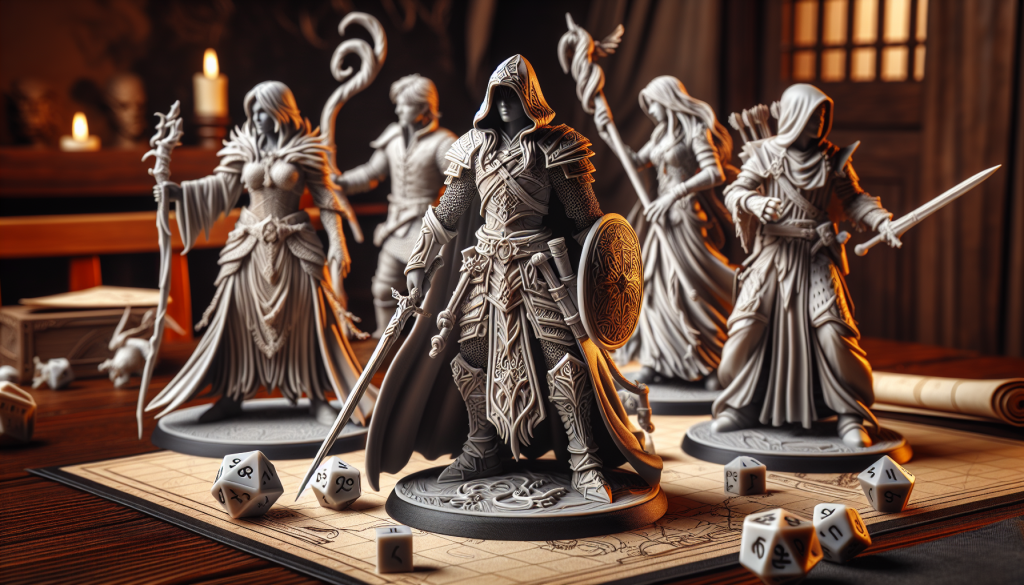
Understanding 3d model file formats
Picture this: you’re finalizing a 3D model for printing or game development, and you suddenly wonder which file format will keep your geometry intact and your colors vibrant. That’s where 3d model file formats step in. They act like different languages for telling computers (and printers) how to shape, shade, and sometimes even animate your creations. Whether you’re slicing a file for a new figurine or adding life to characters in a gaming world, the right format ensures your work stays true to your vision.
In this guide, you’ll learn which formats to consider, how each one behaves, and a few tips for choosing the perfect fit. By the end, you’ll be able to pick a reliable file type for your specific project, whether it’s 3D printing, AR, or something else entirely.
Clarifying your project goals
Before you choose the format, pause for a second and think about what you actually plan to do with that 3D model. Are you focusing on 3D printing a prototype, or do you want it to look top-notch in a real-time engine like Unity or Unreal? Different goals often require different design considerations, and that includes the file format you’ll use.
- 3D printing: If you’re prototyping a figurine or a spare part, you might need a format that supports color, detail, or just geometry. For an in-depth look at great file types for printing, check out 3d printing file formats.
- Animation and gaming: Formats that store animation data, skeletons, or advanced material definitions often fit better when you’re creating interactive experiences.
- AR and VR experiences: Some formats transmit data smoothly for augmented or virtual reality, keeping loading times low while preserving detail.
Stating your main goal ensures you don’t waste time converting or re-doing your model. Format is more than a detail – it’s a foundation for your entire workflow.
Exploring popular file types
It’s time to get hands-on with the main characters of the file format world. Each has unique features, so understanding them is like learning different dialects in a larger 3D language.
STL
If you’ve spent any amount of time around 3D printers, you’ve likely encountered STL (Stereolithography). This format goes back to the 1980s, when it was created by Chuck Hull at 3D Systems. STL files capture just the surface geometry of your shape via a mesh of triangles – no extra color or texture data involved.
- Simple geometry storage
- Universally accepted by 3D printers
- No color, texture, or advanced material properties
Because STL strips away the bells and whistles, it’s ideal for prototyping, especially when you only care about shape. Sports apparel makers and auto manufacturers frequently use STL for rapid design trials (ViVerese).
OBJ
OBJ is another classic format known for geometry and texture support. Though it’s been around since the 1980s, it remains popular across modeling tools like Blender, Maya, and others. OBJ stores 3D geometry along with texture mapping, but it needs a separate MTL file (Material Template Library) to handle color and textures.
- Good for standard geometry
- Basic material and texture support
- Works well in many modeling programs
If you ever need a straightforward, widely compatible file, OBJ is like a universal translator. It’s also popular with 3D printing enthusiasts, especially for printers supporting color, because OBJ can include texture data in addition to geometry (Xometry).
FBX
FBX, originally created by Kaydara, shines in projects with animation requirements. It’s now owned by Autodesk, and it supports complex rigging, skinning, and keyframe animations, plus advanced material definitions. If you’re building a game with characters that need to jump, wave, or dance, FBX is a strong choice.
- Full animation support (rigs, bones, motions)
- High level of material detail
- Widely used in gaming and film industries
FBX files port complex 3D models between major software like 3ds Max, Maya, or Unreal Engine (Adobe). Even older game dev workflows willingly accept FBX due to its long-standing reliability.
glTF and GLB
If quick, efficient sharing on the web is your aim, glTF (GL Transmission Format) and its binary version, GLB, are perfect solutions. Introduced in 2015, glTF avoids heavy overhead by compressing geometry, textures, and animations. This efficiency suits real-time rendering, such as AR experiences on social platforms or product previews in any browser.
- Lightweight design for faster loading
- Supports PBR (Physically Based Rendering) materials
- Great for web-based projects and VR/AR
Major players like Facebook and Google use glTF for AR because it streamlines memory usage (CGTrader). If your audience expects an instant view of your model online, glTF or GLB can deliver.
USD and USDZ
Pixar developed USD (Universal Scene Description) for sophisticated animation pipelines, and Apple’s USDZ is a specialized version tailored for AR on iOS. These formats store not just geometry and textures, but also lighting, scene hierarchy, and even animation details. They’re especially handy for AR apps on iPhones or iPads, because USDZ loads easily in Apple’s ecosystem.
- Developed by Pixar, widely supported by Apple
- Ideal for AR apps on iOS devices
- Handles complex scenes, materials, and animations
If you’re targeting Apple AR or large-scale animation production, USD and USDZ let you keep everything (geometry, lighting, composition) in a single, organized package.
3MF and PLY
3MF (3D Manufacturing Format) is an additive manufacturing dream. Developed by companies like Microsoft, Autodesk, and HP, 3MF includes definitions for colors, materials, and even partial shape data to handle high-fidelity printing that STL can’t. Meanwhile, PLY (Polygon File Format), created in the 1990s at Stanford, is often used for 3D scanning data and can support color and transparency.
- 3MF: Focus on printing with robust color and material data
- PLY: Great for scanned models, also supports color/texture
Not all slicers handle PLY, so it’s slightly more niche, but 3MF is steadily gaining traction among pros who demand advanced print data (Xometry).
STEP and G-Code
STEP files are a staple in CAD modeling. They convey exact geometry and are crucial in professional engineering environments where shape and layout matter most. If you want multiple parts to fit perfectly, or you need compatibility across mechanical design platforms, STEP is your friend.
G-Code is something else entirely – it’s the machine’s own language, telling the printer or CNC machine how to move, slice, and deposit material. In other words, G-Code is the final set of instructions your 3D printer interprets. You usually won’t model directly in G-Code, but you’ll derive it from your chosen 3D file format.
- STEP: Great for CAD and mechanical design, focusing on exact shapes
- G-Code: Instruction script for 3D printers and CNC machines
When you slice an STL or OBJ in your printing software, you end up with G-Code commands your machine can follow. That means you typically won’t pick “G-Code format” at the design stage, but you will rely on it as the final step for printing.
Comparing key file formats
Ready for a quick side-by-side glance? Below is a table summarizing core features of popular formats to help you choose a path forward quickly.
| Format | Main Use Cases | Supports Color/Texture | Animation Support | Notes |
|---|---|---|---|---|
| STL | Rapid prototyping, 3D printing | No | No | Geometry-only, widely accepted by printers |
| OBJ | General 3D modeling, printing | Yes (with MTL) | No | Easy to share, good for colored prints |
| FBX | Gaming, VFX, animation | Yes | Yes | Integral for animated projects in major engines |
| glTF/GLB | Web AR/VR, online viewers | Yes | Yes | Lightweight, uses PBR materials, fast loading |
| USD/USDA/USDZ | Complex scenes, Apple AR | Yes | Yes | Robust format from Pixar, iOS-friendly |
| 3MF | Advanced 3D printing | Yes | Limited | Rich additive manufacturing info |
| PLY | 3D scanning, color data | Yes | No | Sometimes not supported in all slicers |
| STEP | CAD, mechanical design | Minimal | No | Communicates shape and layout precisely |
Each of these formats has unique strengths. If you’re planning heavy-duty animations, FBX or USD is the way to go. If you just want a no-frills 3D print, STL will probably cover your needs.
Choosing the right format
Picking an optimal file format might feel like deciding between a dozen flavors of ice cream. They all taste great in certain situations, but not every flavor belongs in your specific recipe. Here’s how to narrow it down:
- Identify project scope.
- Are you prototyping, animating, or building an interactive experience?
- Think about hardware and software compatibility.
- Will your slicer, design tool, or game engine accept that format easily?
- Consider any unique features.
- Need realistic materials or advanced lighting? glTF might shine.
- Need your character properly rigged? FBX is a better bet.
- Check file size.
- STL or OBJ might be simpler but can’t handle advanced features.
- glTF and USD aim to compress or layer data effectively.
- Anticipate future changes.
- If you might add animation later, choose a format that can store it.
You might also plan for conversions. Sometimes you’ll begin in OBJ, realize you want animation, and convert to FBX. Tools like Blender or Autodesk software can handle conversions, though you may lose some detail if your original format didn’t store that info.
Summarizing your next steps
Choosing the correct file format for your 3D project can save you headaches and help you produce top-quality work. Once you nail down your goal – be it printing, game dev, or AR – you’ll find a format that speaks the right language.
Keep in mind:
- STL keeps it simple for prototypes and basic models but omits color.
- OBJ works nicely if you need color or texture but not animation.
- FBX supports everything from geometry to elaborate animations.
- glTF/GLB is great for browser-based experiences and real-time rendering.
- USD/USDZ is essential for advanced animation or Apple AR tasks.
- 3MF and PLY work in specialized scenarios, like color prints or scanned data.
- STEP helps with precise mechanical designs, and G-Code is your printer’s final script.
Now’s your chance to try a new format on your next project. If you’re printing something at home, you might explore how 3MF compares to STL. Or if you’re dabbling in a web-based AR concept, give glTF a look. You’ll soon see how picking the right format fosters a smoother workflow and a final result that truly matches your creative vision.
Got a favorite file format or a cool tip? Feel free to share your thoughts. Your unique experience might help others figure out this ever-evolving world of 3D options. And if you’re curious about how these file types intersect with printing in deeper detail, don’t forget to revisit these 3d printing file formats. Sometimes, one small adjustment – even in something as simple as a file type – can completely transform your final outcome. Enjoy experimenting, and happy modeling!